
Skip to content
assostro-header-logo
assistro
  • Integrations
    • Zapier
    • Shopify
    • HubSpot
    • Make
    • N8N
    • Chrome Extension
      • HubSpot
      • ClickUp
      • Monday.com
    • Flavor CRM
    • WordPress (Coming soon)
    • Metro Accounting (Coming soon)
  • Learn
    • Blog
    • Developer Guide
    • User Guide
    • Tutorial
  • Pricing
  • Contact Us
  • Get Started
Get Started

Extension

5
  • Define your own template to send schedule message
  • Send Message at a scheduled time using SyncMate
  • Bulk messaging at a scheduled time using SyncMate
  • Sending a Direct Message Without Saving a Number on WhatsApp
  • An onboarding guide for Extension

Other

23
  • How to Remove Branding from Messages
  • Connect your monday.com App with SyncMate
  • How to Get API Key / Access Token
  • QR Code Not Generating
  • How to Send an Image
  • Messages Failed Due to Daily Limit
  • How to Change WhatsApp Number
  • How to Check if WhatsApp is Connected
  • Messages Are Being Delivered Slowly
  • Waiting for this message. This may take a while
  • Message Not Received / Not Sent
  • Messages Stuck in Queue
  • How to use SyncMate in a 3rd Party application via OAuth – The Secure way
  • How to Add More Message Credits
  • How to Cancel Your Subscription
  • How to Subscribe to a Plan
  • Resolving Message Sending Failures
  • How to Keep Your WhatsApp Account Safe & Avoid Bans
  • How to back up your WhatsApp chats in HubSpot?
  • SyncMate User Guide: Regenerating Your Token
  • Getting Started with SyncMate and Shopify Integration: A Step-by-Step Guide
  • After Installation : Setting up SyncMate Chrome Extension
  • Assistro Dashboard

SyncMate

7
  • How to Connect Your Meta WhatsApp Cloud API with SyncMate?
  • Connect your WooCommerce App with SyncMate
  • Connect your Contact Form 7 App with SyncMate
  • Troubleshooting and Reconnection Guide
  • How to use SyncMate X Shopify Application ?
  • How to send automated WhatsApp messages on Google Calendar events?
  • How to Connect your WhatsApp with SyncMate?

Developer Guide

3
  • SyncMate User Guide: Regenerating Your Token
  • How to Set Up Webhooks for WhatsApp Events in SyncMate
  • Connect your Custom App with SyncMate

Tutorial

2
  • SyncMate Introduction Video
  • Use WhatsApp API with Custom applications using SyncMate

HubSpot

9
  • Connect your HubSpot App with SyncMate
  • How to Save a WhatsApp Contact to HubSpot Using SyncMate?
  • How to create a Deal for a WhatsApp Contact in HubSpot via SyncMate?
  • How to Create a Note for a WhatsApp Contact in HubSpot using SyncMate?
  • How to Create a Task for a WhatsApp Contact in HubSpot using SyncMate?
  • How to Create a Ticket for a WhatsApp Contact in HubSpot through SyncMate?
  • How to Create a Log for a WhatsApp Contact in HubSpot through SyncMate?
  • How to Back Up and associate Your Contacts’ Data in HubSpot?
  • An Onboarding Guide for HubSpot Via SyncMate

Zapier

7
  • How to fetch WhatsApp Group ID – Guide to Fetch Group ID
  • How to fetch WhatsApp Channel or Newsletter ID – Guide to Fetch Channel or Newsletter ID
  • How to connect Zapier with SyncMate?
  • How to send a WhatsApp notification to any individual?
  • How to send a WhatsApp Notification to any group or channel?
  • An onboarding guide for Zapier via SyncMate
  • How to connect Flavor CRM with SyncMate?

N8N

2
  • How to Send WhatsApp Messages via Assistro in n8n?
  • Connect your N8N with SyncMate

Shopify

1
  • Connect your Shopify with SyncMate

make

1
  • Connect your Make with SyncMate

Pabbly

1
  • Connect your Pabbly with SyncMate

Integrately

1
  • Connect your Integrately with SyncMate
View Categories
  • Home
  • user-guide
  • Developer Guide
  • SyncMate User Guide: Regenerating Your Token

SyncMate User Guide: Regenerating Your Token

< 1 min read

This user guide will walk you through the simple steps to regenerate your token. Tokens play a crucial role in securing your account, and regenerating them ensures the continued safety of your data.

Regenerating Your Token

Follow these steps to generate a new API token for your application. Make sure to update any integrations with the new token immediately, as the old one will be invalidated.
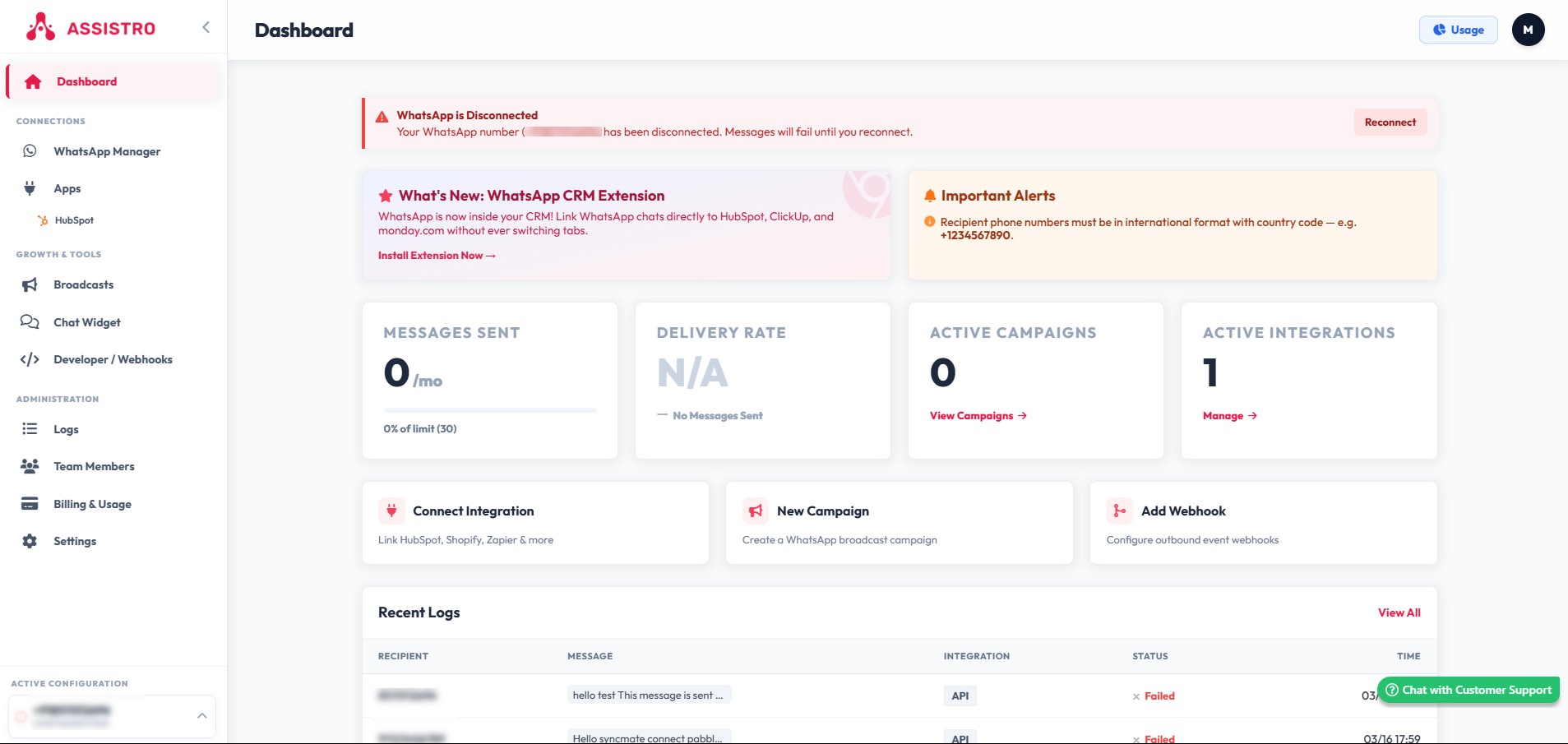
1.Log In to Assistro:

Navigate to https://app.assistro.co/ and log in to your account.


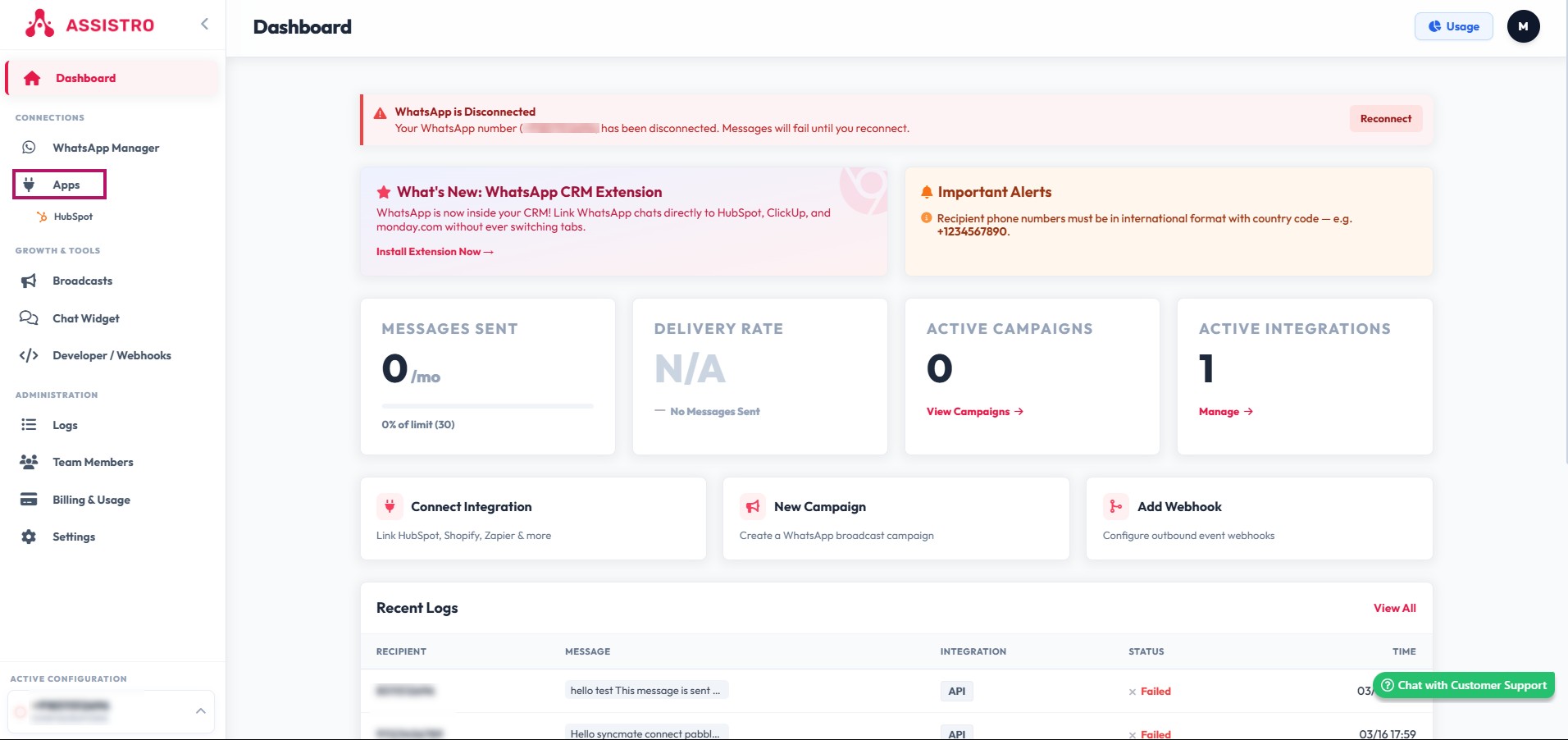
2.Open the Apps Module:

From your main dashboard, click on the Apps module to view your configured applications.
 

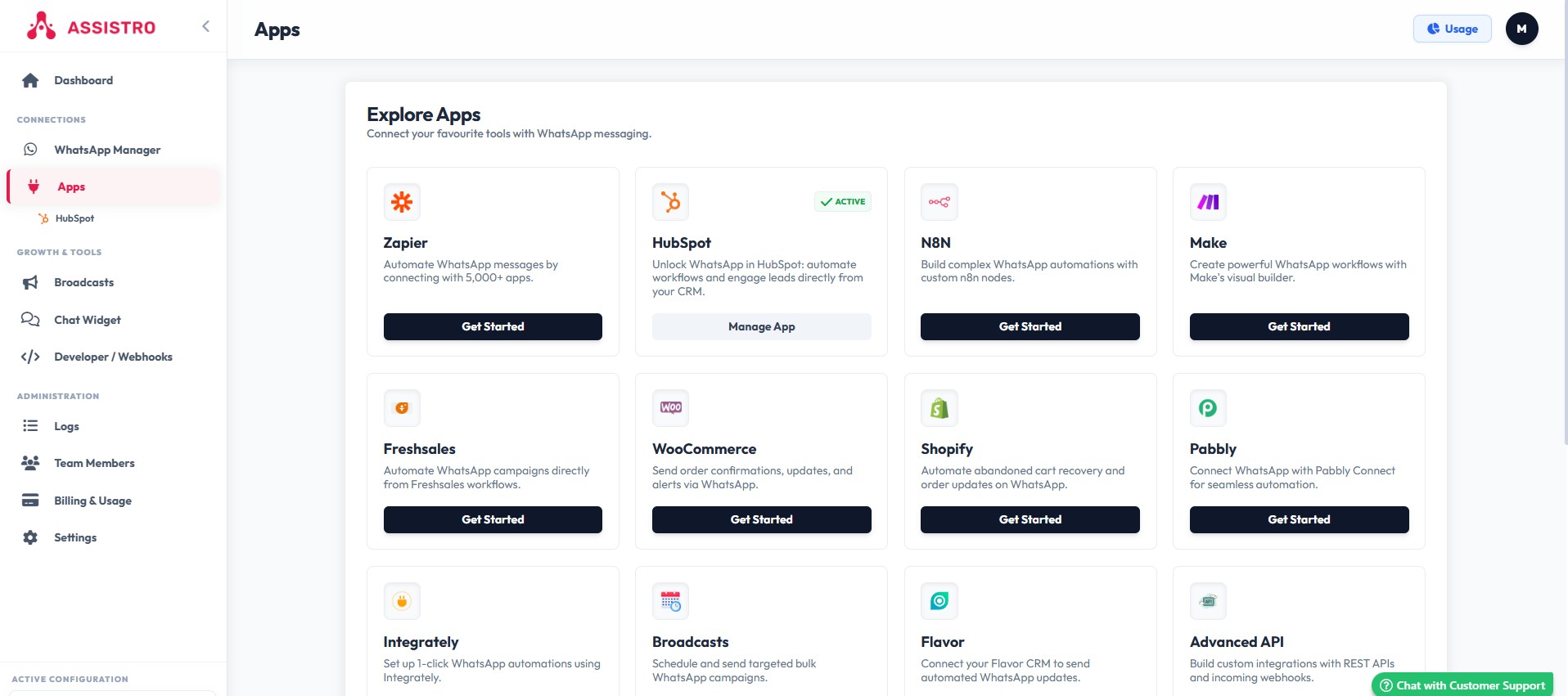
3.Select Your Application:

Locate and click on the specific app for which you need to regenerate the token.
 

4.Access API & Token Settings:

Inside the application settings, go to the API & Token section.
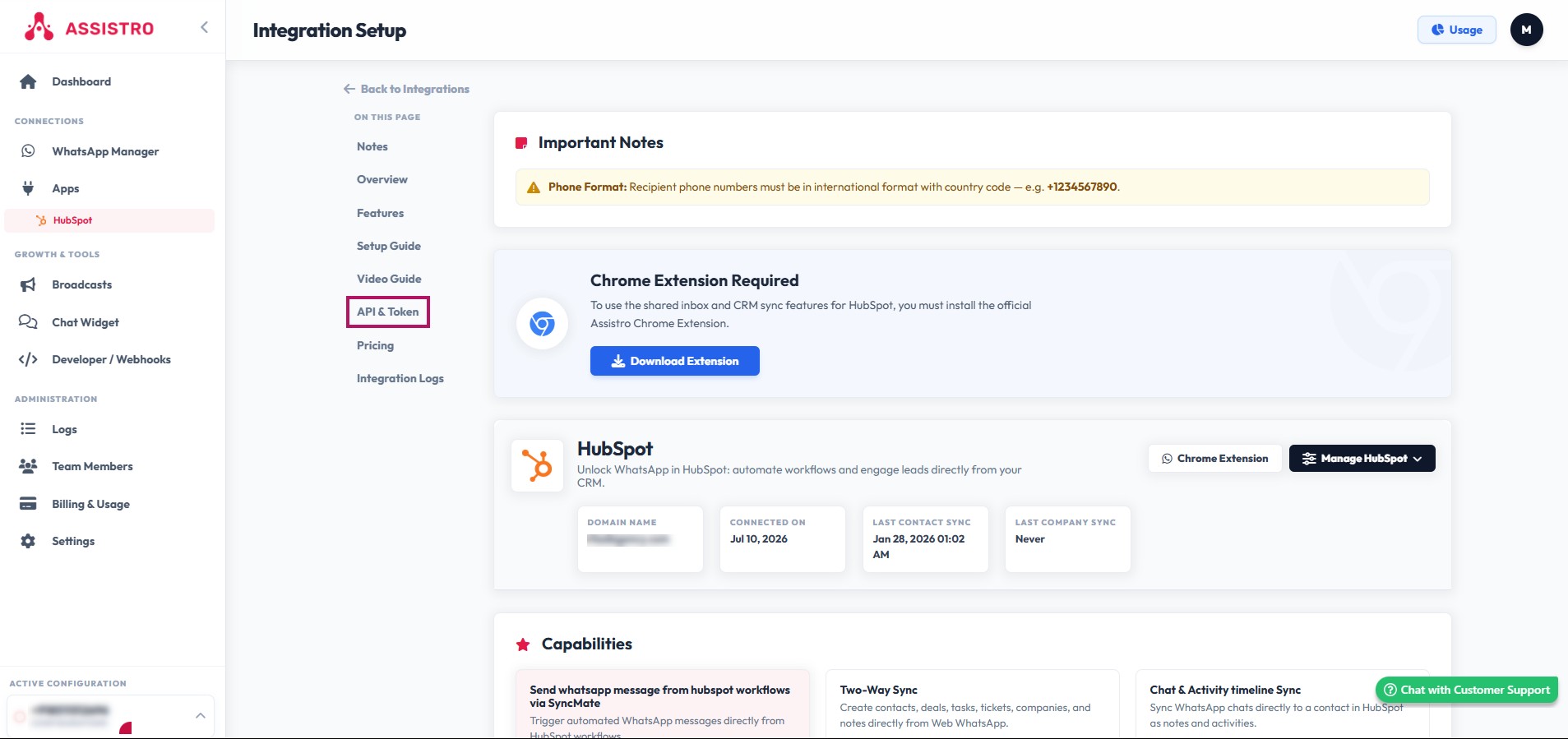
 

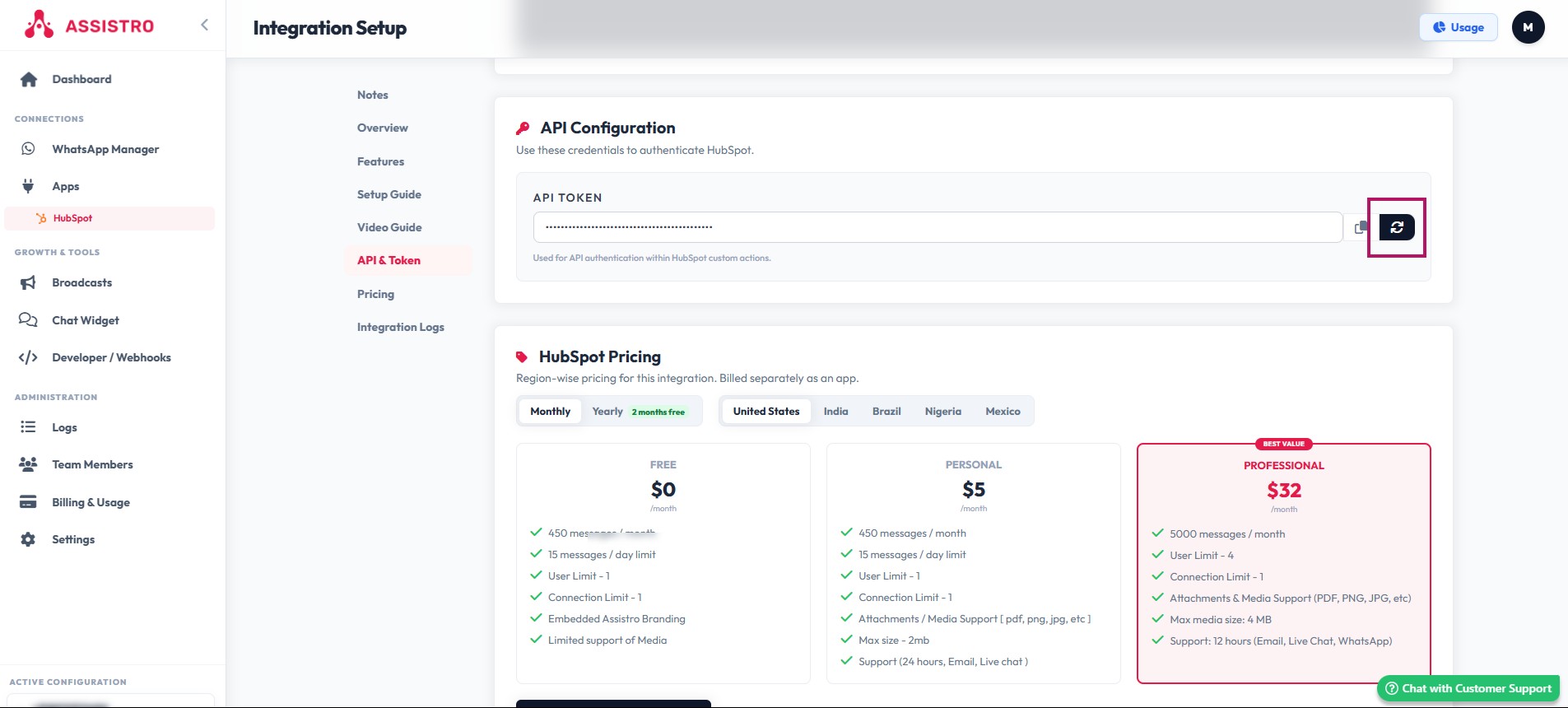
5.Regenerate the Token:

Click the Regenerate icon.


Success: You will see a confirmation message stating “Api Token regenerated for the Application”. Your new token is now active and ready to use.


Updated on July 10, 2026

What are your Feelings

  • Happy
  • Normal
  • Sad
Share This Article :
  • Facebook
  • X
  • LinkedIn
  • Pinterest
assistro

We’re your innovation partner, delivering cutting-edge solutions that elevate your business to the next level.


    Navigation

    • Integrations
    • Pricing
    • Contact Us

    Integrations

    • Zapier
    • Shopify
    • HubSpot
    • Wordpress
    • Chrome Extension
    • Metro Accounting [Coming soon]
    • Flavor CRM [Coming soon]

    Learn

    • Blogs
    • Developers
    • User Guide
    • Tutorials

    © Copyright 2025, All Rights Reserved by Assistro